
Why some videos have no sound on YouTube using Chrome
While browsing YouTube using Chrome, have you ever noticed that some videos don’t have sound? Do you have an integrated Realtek HD sound card or similar 5.1 audio? Here is a fix for you!
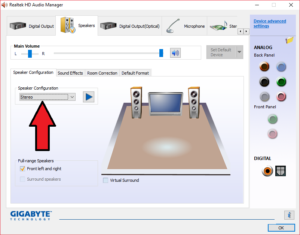
There are two ways of fixing this problem. First, you can select Stereo speaker setup in your Realtek HD Audio Manager. You can access the manager by going to Control Panel>Realtek HD Audio Manager. Under Speaker Configuration select the drop down menu and then click “Stereo” as shown in the screenshot below.
OR
Open up Chrome’s properties by right-clicking the icon either in your Start Menu or Desktop and select “Properties”. The following screen appears:

In the “Target” text box make sure the command appears like this: X:\Users\{username}\AppData\Local\Google\Chrome\Application\chrome.exe –force-wave-audio
Where X is the letter of the drive where Chrome is installed (usually C) and {username} is your Windows username.
What the –force-wave-audio does is force Chrome to use a specific audio codec that only runs in Stereo for all web audio.
Restart Chrome and you should be good to go!
Also, do yourself a favor and check out Monoprice’s really sweet (and cheap) 5.1 speaker setup:
Monoprice 108247 5.1-Channel Home Theater Speaker System, Six
